
Embedded marketplace
The JavaScript library shows Beauty Router’s interface inside your salon app: the marketplace, the cart, the checkout, favorites, order history, one order, order tracking, order rating, the verification page, payment cards, the service selector, supplier profiles, and product details. You decide where each one appears.
Before you start
Section titled “Before you start”- Web pages and web views. The library runs on web pages. In a mobile app, open such a page in a web view. Native components are not available yet.
- Add your origins. Only origins registered for your salon app can embed the interface. Add the origins where your
salon app runs, such as
https://app.example.com, in the salon app admin area. Each one must use HTTPS. In the sandbox you can also addhttp://localhostwith a port. Each environment has its own origins. - Get a user token on your server. Your server logs in the user with
POST /v1/loginand passes the user token to your page, which hands it to the library. The app token stays on your server. See Authentication.
Load the library
Section titled “Load the library”Add the script to your page, then call BeautyRouter.init.
<script src="https://js.beautyrouter.com/v1/beauty-router.js"></script>Initialize
Section titled “Initialize”const beautyRouter = BeautyRouter.init({ async getUserToken() { const response = await fetch("/beauty-router/login", { method: "POST" }); const { userToken } = await response.json(); return userToken; }, onOrderCreated(orders) {},});| Option | Description |
|---|---|
getUserToken |
An async function your page provides. It asks your server for a user token and returns it. The library calls it when it starts and whenever the token expires. |
onOrderCreated |
Runs after a checkout. It gets an array of orders, because one checkout creates one order per brand or distributor. |
The user token reaches Beauty Router’s frame through postMessage. It is never put in a URL.
New orders
Section titled “New orders”onOrderCreated(orders) gets an array of Order objects, one per brand or distributor in the checkout. Each one has the
same shape as in Orders. Your server also receives an order.created webhook for each order.
Token expiry
Section titled “Token expiry”The user token lasts 24 hours. When it expires, the library calls getUserToken again and goes on with the new token. It
does the same once when a request fails with invalid_user_token. When getUserToken fails, the library shows a
try-again state.
You can call show… functions right after init. The library queues them until it has the first token.
Getting a token never needs the library. POST /v1/login is the same for a page that uses only the API, which logs in
again on a 401.
Another user
Section titled “Another user”A user change needs a page reload, or a second BeautyRouter.init, which closes the earlier frames.
Functions
Section titled “Functions”The functions belong to the object that BeautyRouter.init returns. Every show… function takes the HTML element to
render into, and shows Beauty Router’s interface inside it.
| Function | What it shows |
|---|---|
showMarketplace(element) |
The main page of the marketplace. |
showCart(element) |
The cart. |
showCheckout(element, { lines }) |
A checkout for a list of lines. |
showFavorites(element) |
The user’s favorite products. |
showOrders(element) |
Order history, with all the company’s orders. |
showOrder(element, orderId) |
One order, with its actions. |
showOrderTracking(element, orderId) |
The tracking page of one order. |
showOrderRating(element, orderId) |
The form to rate one delivered order. |
showVerification(element) |
Company details, documents, and the payment card. |
showPaymentCards(element) |
A small list of the company’s payment cards. |
showSupplier(element, supplierId) |
The profile of one supplier. |
showServiceSelector(element, { level }) |
A form to select services or propose a new one. |
showProductDetails(element, productId, options) |
One product. |
The pictures show the default design with sample data. A selected interface design changes the colors and fonts.
Marketplace
Section titled “Marketplace”beautyRouter.showMarketplace(element);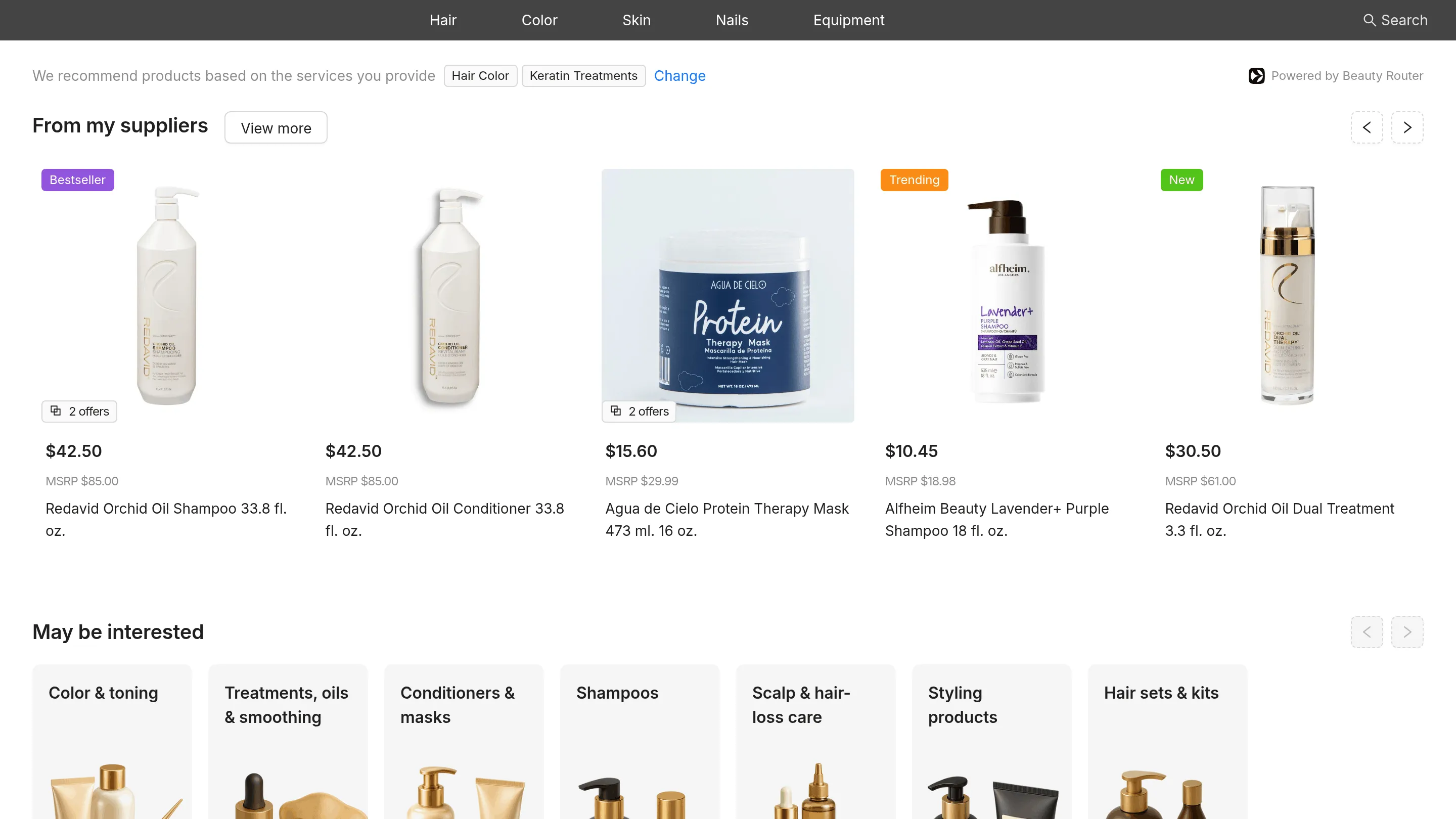
The main page has a category menu, a search box, and rows of products, collections, and suppliers, such as From my suppliers, Trending this month, and New arrivals. The user searches by product, brand, category, or concern, opens a product or a supplier, and saves favorites.
The line under the menu shows the services behind the recommendations. Change lets the user select their own, at the
user level. See Services.
The price on each product depends on the company’s verification status:
| Status | What the user sees |
|---|---|
prequalified, verified |
The wholesale price. |
in_review |
Waiting for verification. |
unverified, declined |
Unlock wholesale price. |
beautyRouter.showCart(element);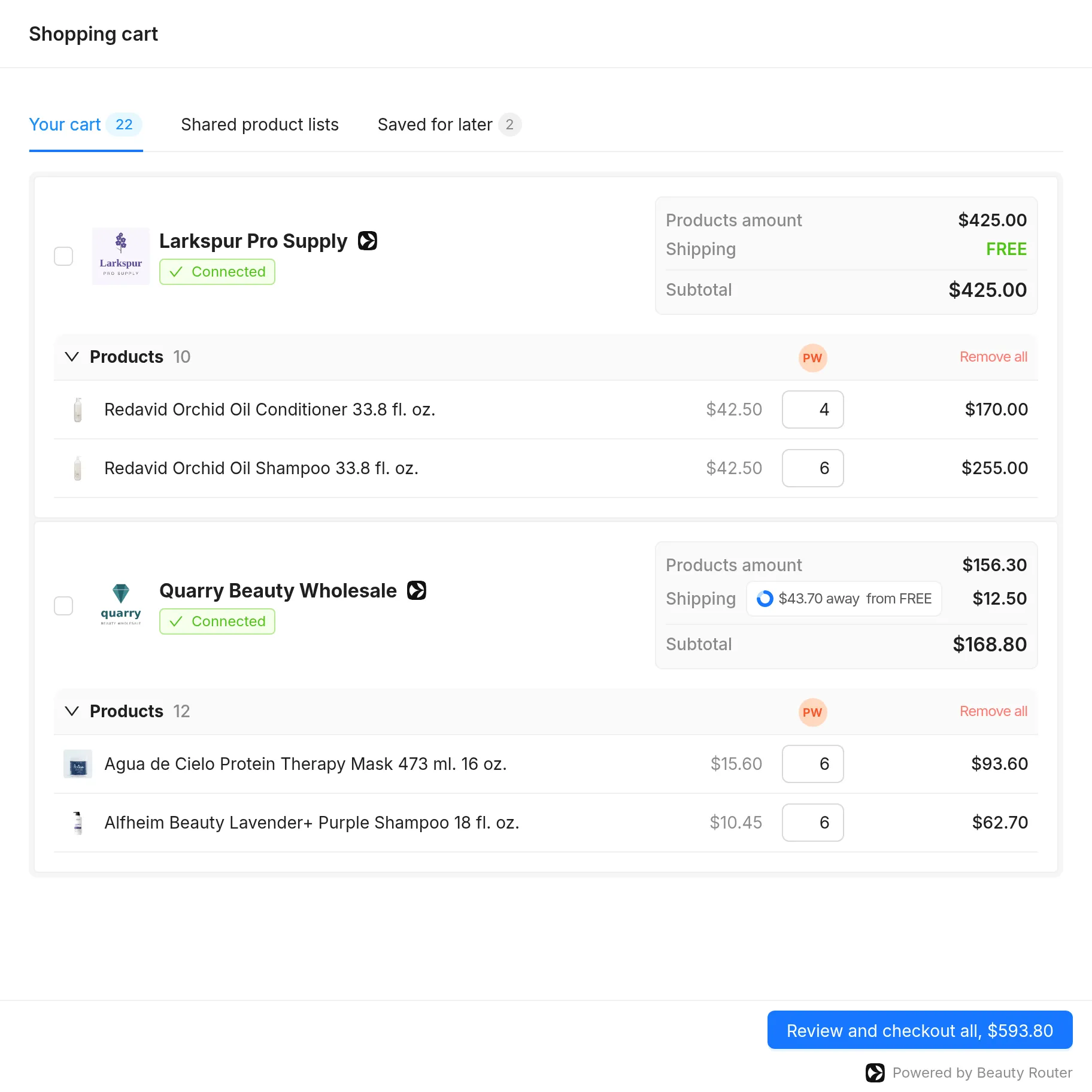
The cart groups products by brand or distributor. Each group shows its products amount, shipping, and subtotal. The user changes quantities, removes products, and moves them to Saved for later.
Review and checkout opens the checkout in the same element. With two or more groups, the user can select
the ones to check out. When the user places the orders, onOrderCreated runs.
Shared product lists holds the lists that other users of the company shared with this user, who can add a list to their cart.
| State | What the user sees |
|---|---|
| Empty cart | A message and some categories to browse. |
Company is unverified |
A disabled button that asks for the company data. |
Company is in_review |
A disabled button that asks the user to wait for the review. |
Company is declined |
A disabled button that asks the user to fix the company details and submit again. |
canOrder: false |
A button to share the cart with a user who can order, in place of the checkout button. |
Checkout
Section titled “Checkout”beautyRouter.showCheckout(element, { lines: [ { productId: "prod-4Fz9QbX2kL", quantity: 6 }, { productId: "prod-2Df7gHj4Kl", supplierId: "sup-8Wq2eRt5Yu", quantity: 12 }, ],});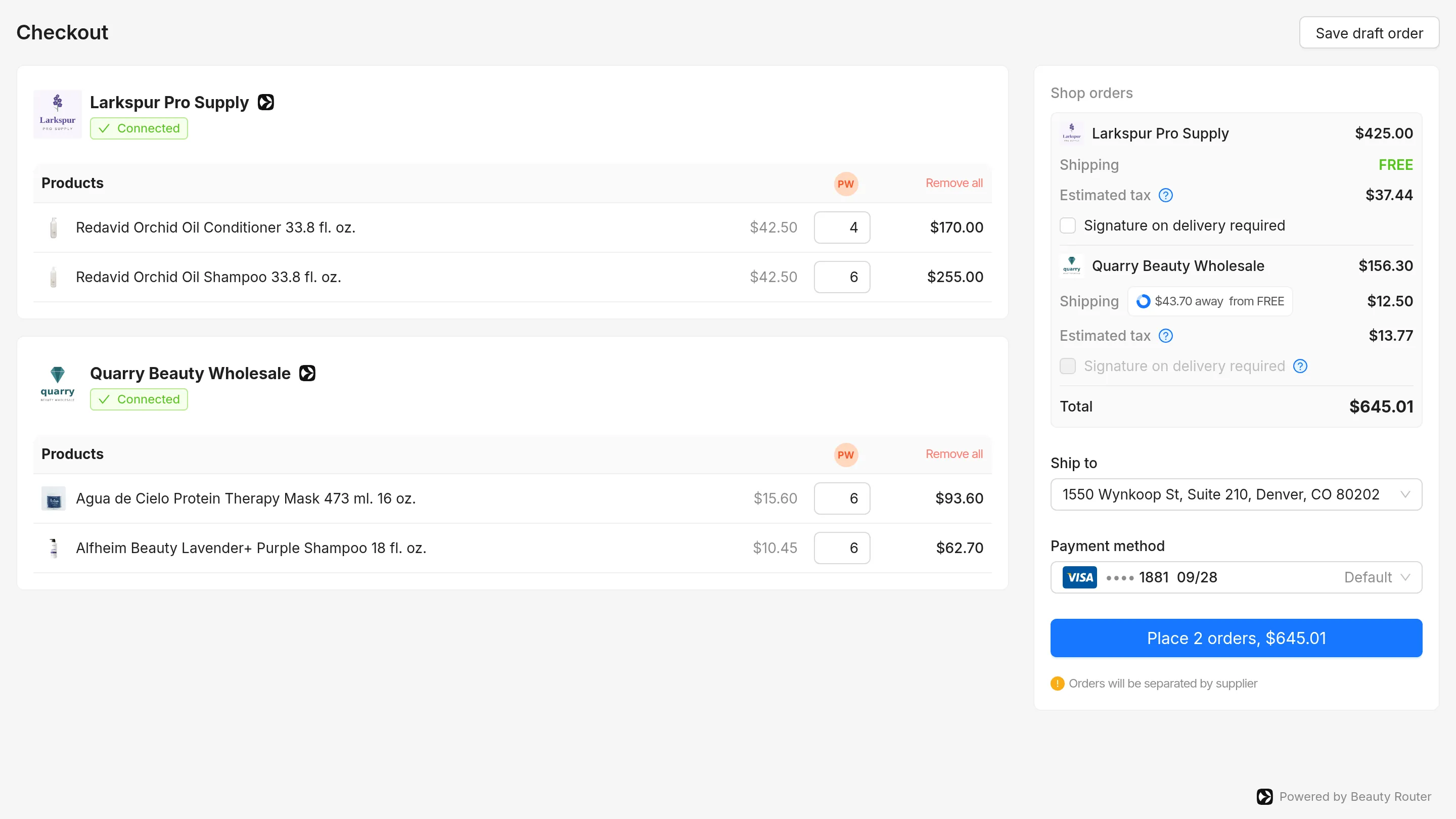
showCheckout shows a checkout for a list of lines, apart from the cart. Use it when your salon app builds the list on
its own screen, such as a reorder list.
Each line has productId, quantity, and an optional supplierId. Without a supplierId, Beauty Router picks the
best offer.
Beauty Router shows the prices, discounts, sales tax, shipping, and the payment card. The user can change quantities, remove products, and change the delivery address and the card. With no address or no card, the page offers to add one.
When the user places the orders, Beauty Router creates one order per brand or distributor and charges the card at once.
An order is placed when the charge succeeds, and payment_failed otherwise. An order from a prequalified company is
pending_verification, with no charge yet. Then onOrderCreated runs with the new orders.
The page can also save a draft, and showOrders lists the drafts. These are the same
drafts as in the API.
To build your own page instead, see Create orders.
Favorites
Section titled “Favorites”beautyRouter.showFavorites(element);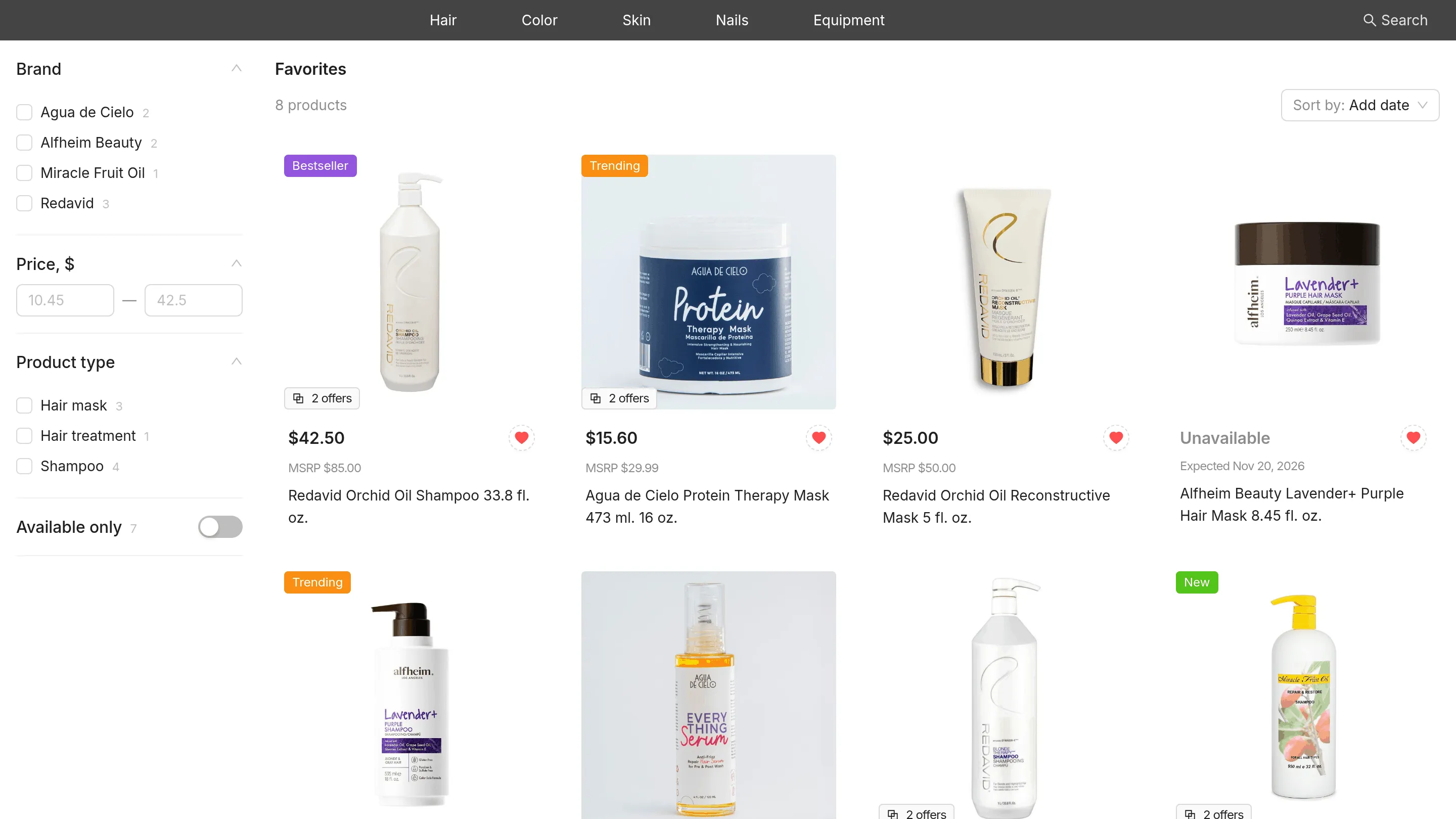
The page lists the user’s favorite products, with the latest first. The user filters them, for example by brand or price, sorts them by date added, newest, or price, opens a product, and removes it with the heart button. A product that is no longer for sale stays in the list and shows as unavailable.
Orders
Section titled “Orders”beautyRouter.showOrders(element);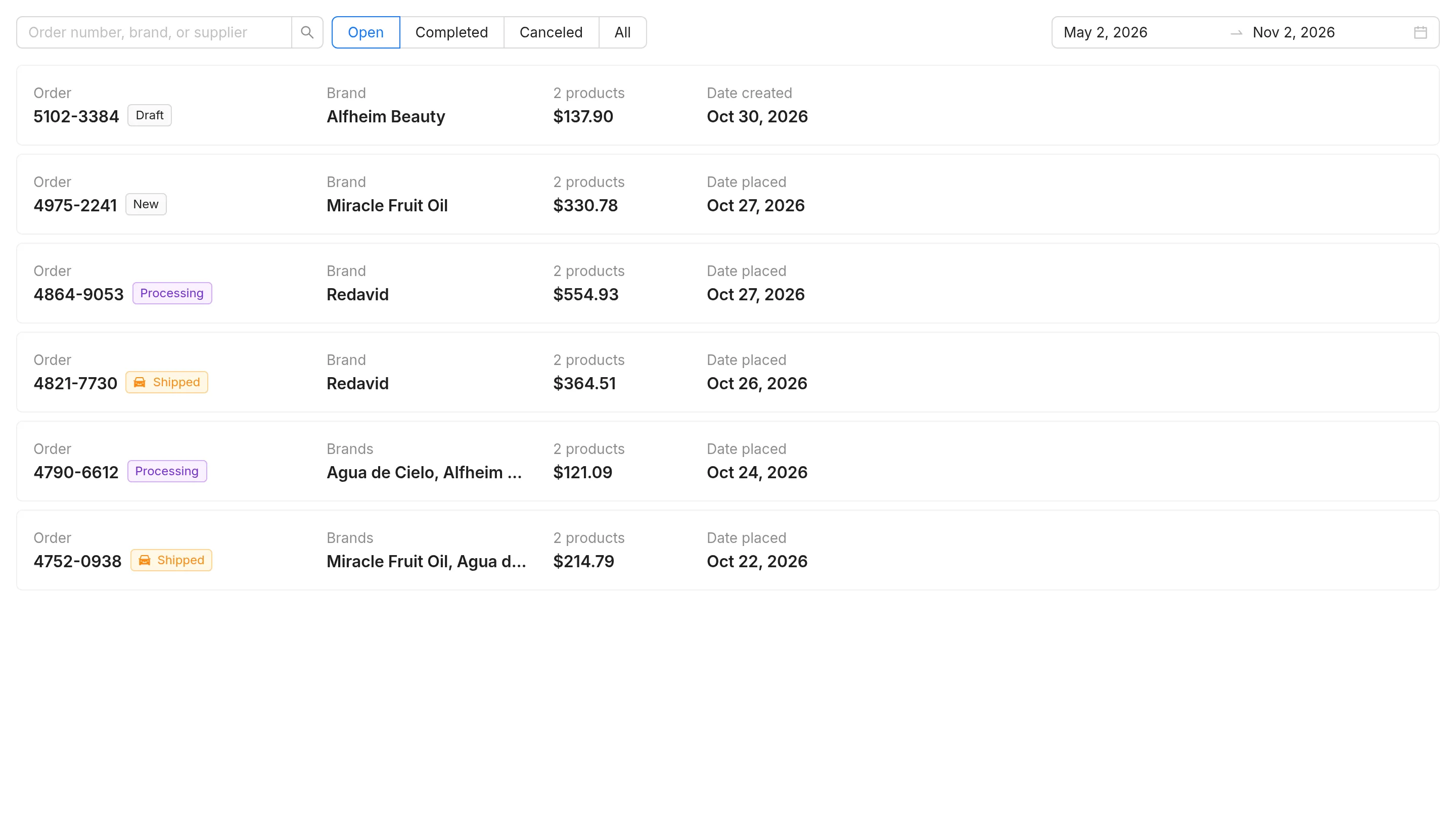
The page lists all the company’s orders, newest first, with drafts. The user searches by order
number, brand, or supplier, and picks a date range. It opens on the Open tab, for the last six months. Each order opens
the same page as showOrder. An order in payment_failed also has buttons in the list to change the card
and to pay again.
| Tab | Statuses |
|---|---|
| Open | draft, pending_verification, payment_failed, placed, ready_to_ship, in_transit |
| Completed | delivered |
| Canceled | delivery_failed, canceled |
| All | Every status. |
See Statuses.
One order
Section titled “One order”beautyRouter.showOrder(element, "order-8Jd3kFs6Gh");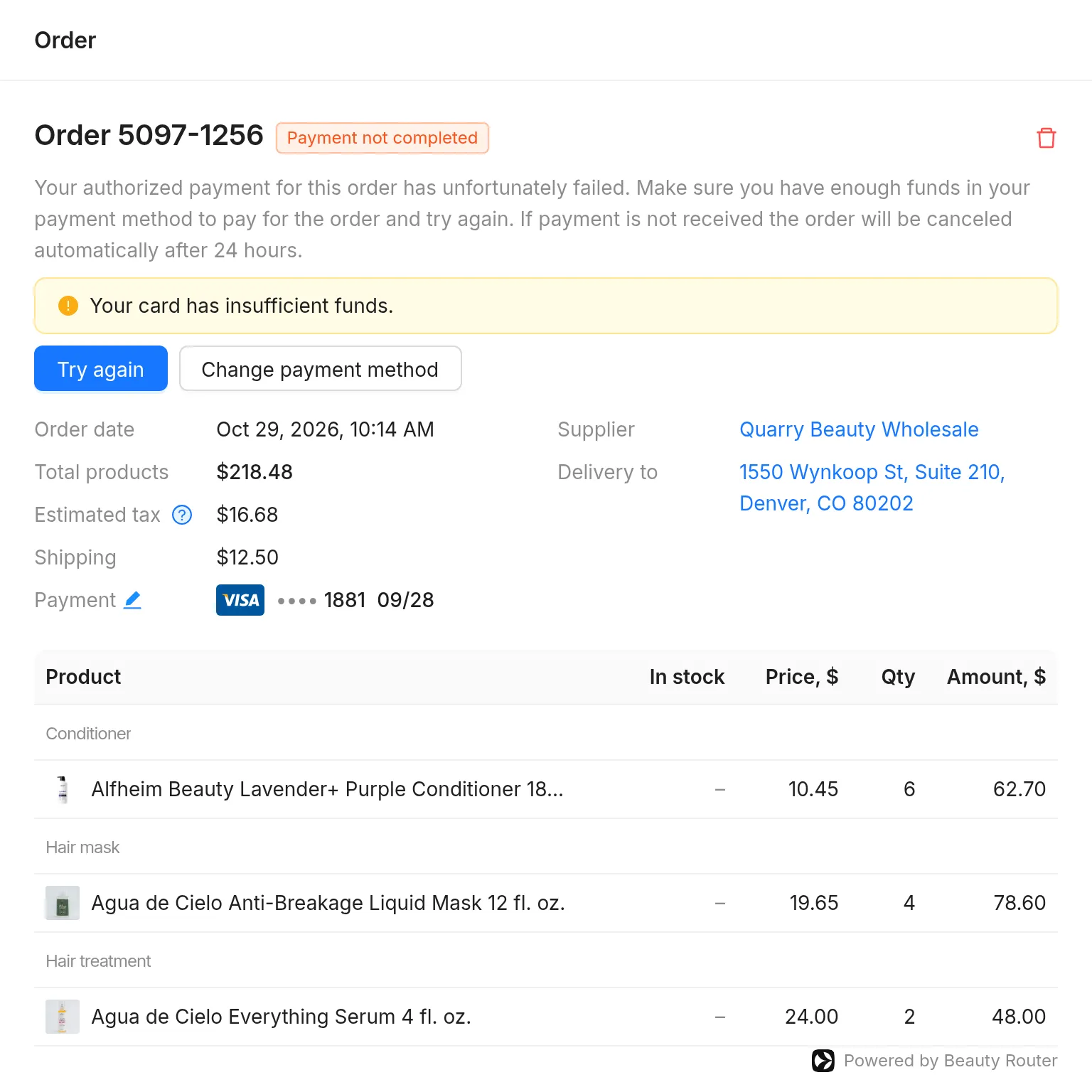
The page shows the order’s status, amounts, payment card, supplier, delivery address, and products. The picture shows an
order in payment_failed. The actions depend on the status:
| Status | What the salon can do |
|---|---|
draft |
Continue in the checkout, or delete the draft. |
pending_verification |
Change the delivery address or the card, or cancel. |
payment_failed |
Pay again when a retry is allowed, choose another card, or cancel. |
placed |
Cancel. |
ready_to_ship |
View the order. |
in_transit |
Track the order. |
delivered |
Track the order and rate it. |
delivery_failed |
Track the order and report a problem. |
canceled |
Report a problem. |
A placed order can no longer change its delivery address. A payment that waits for 3-D Secure is also finished here.
Track order opens the tracking page in the same element.
See Change an order for the rules behind each action.
Order tracking
Section titled “Order tracking”beautyRouter.showOrderTracking(element, "order-8Jd3kFs6Gh");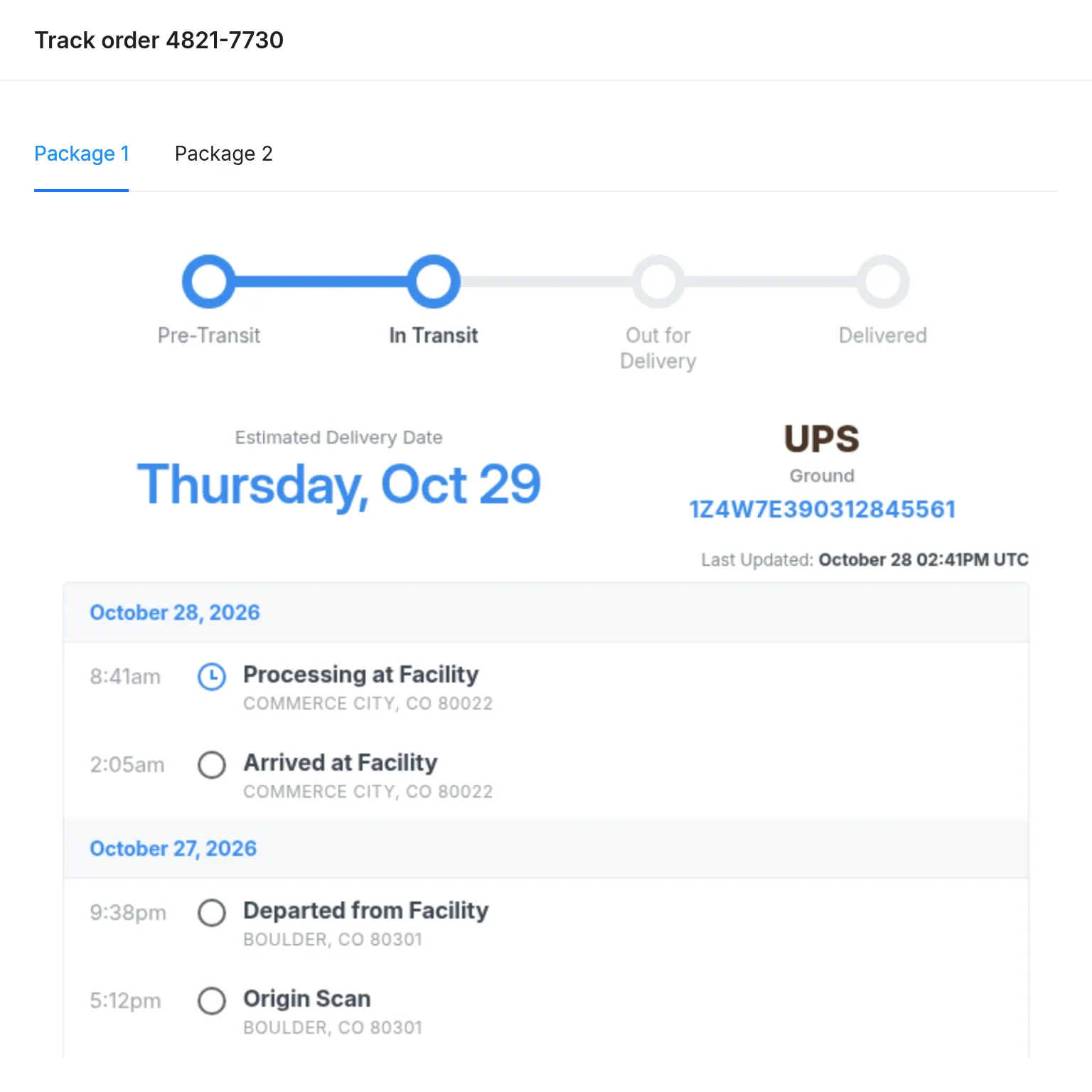
The page shows the tracking page of the order, with a tab for each package. The content comes from the carrier’s tracking data, so it can look different from the picture.
| State | What the user sees |
|---|---|
| Not shipped yet | A message that tracking is not available yet. |
| Carrier with its own tracking site | A button that opens the carrier’s tracking page. |
| Not found | A message that the order was not found. |
| Load error | A try-again state. |
To build your own tracking screen, see Order tracking.
Order rating
Section titled “Order rating”beautyRouter.showOrderRating(element, "order-8Jd3kFs6Gh");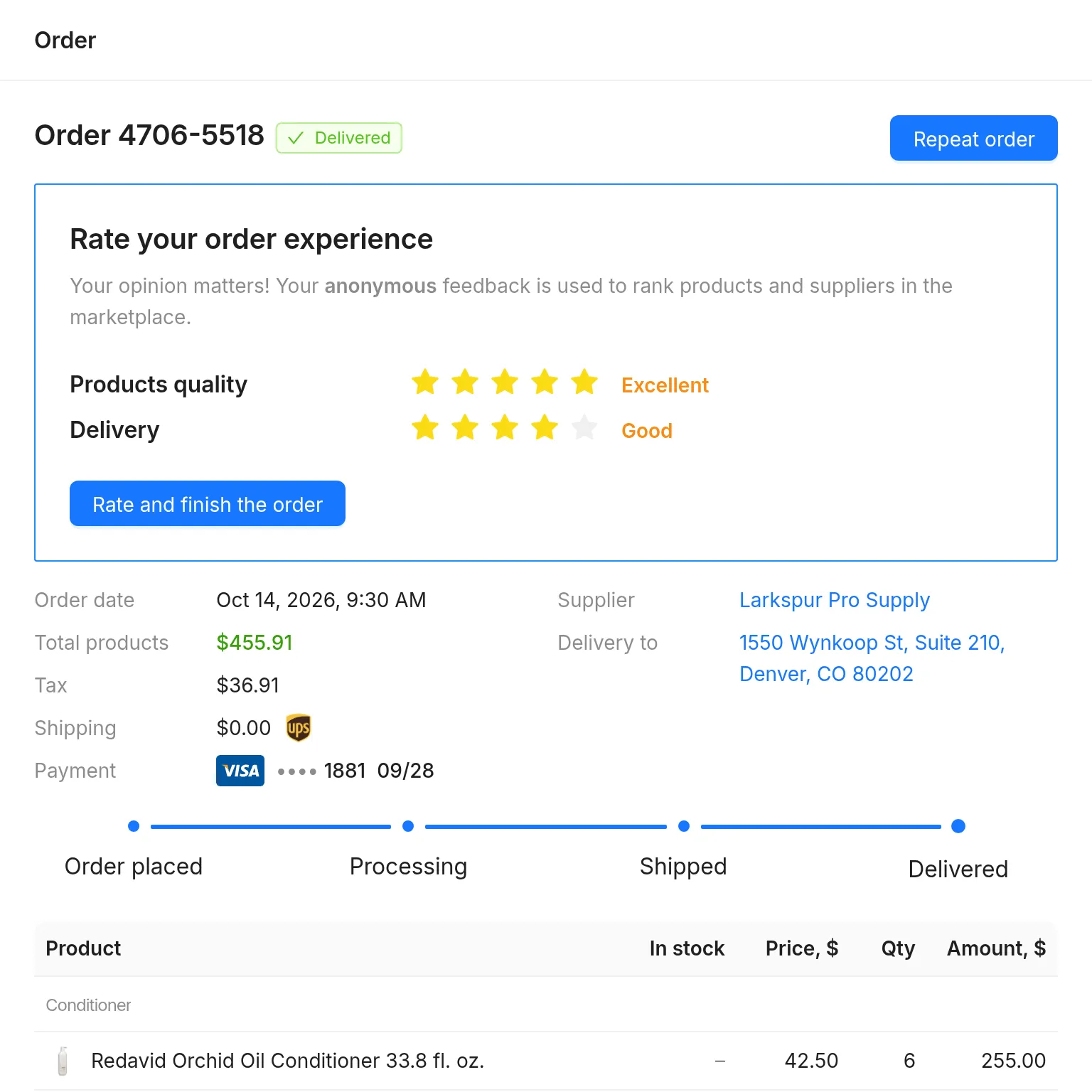
showOrderRating shows a form to rate a delivered order. The salon rates the products and the delivery from one to five
stars. A rating of one or two stars adds a comment box. To report a problem with a delivery_failed or canceled order, the salon uses showOrder.
| State | What the user sees |
|---|---|
| Not delivered yet | A message that the order cannot be rated yet. |
| Already rated | The rating. |
| Not found | A message that the order was not found. |
| Load error | A try-again state. |
canOrder: false |
The form, read only. |
Verification
Section titled “Verification”beautyRouter.showVerification(element);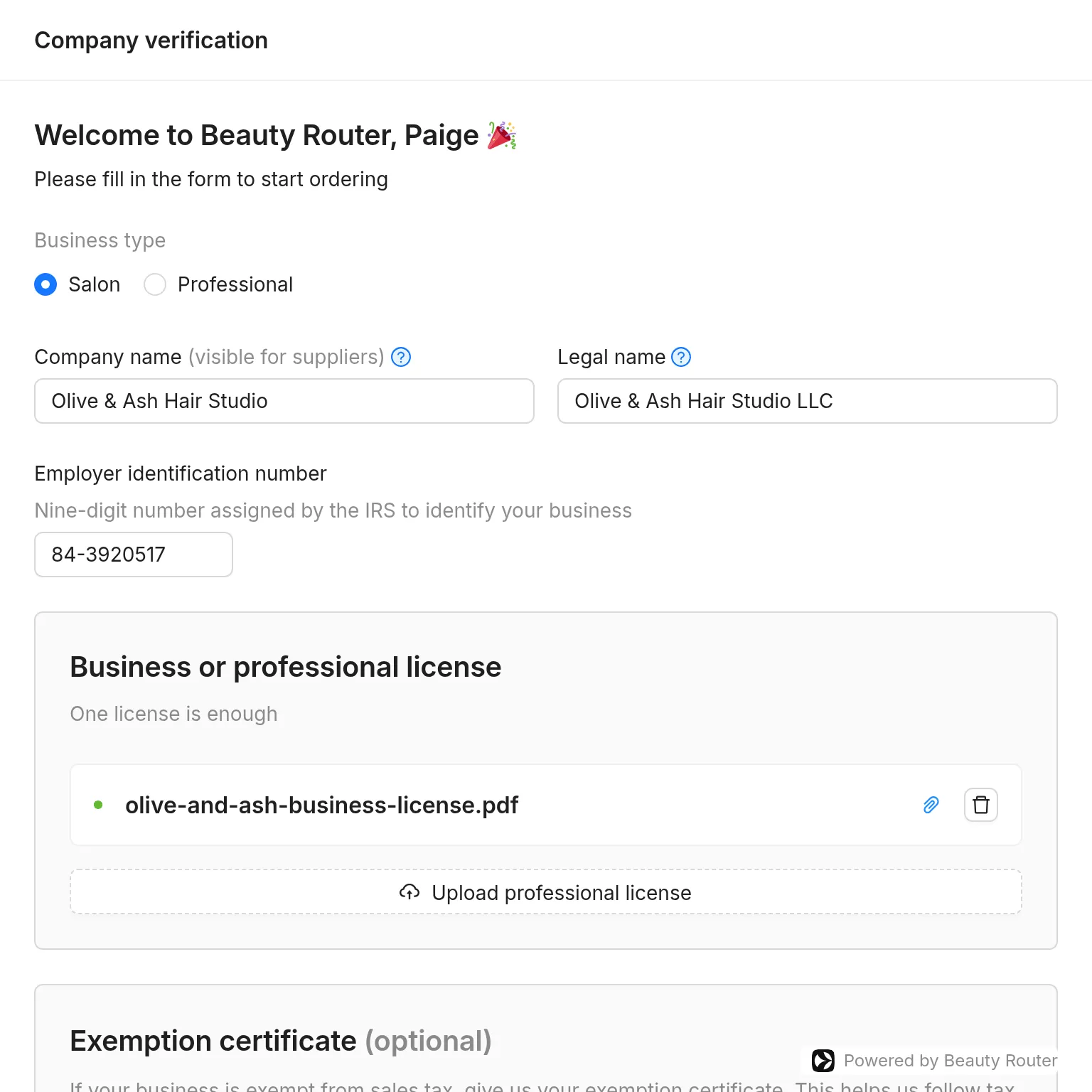
The page collects the company details, the delivery address, the documents, and the payment card, and it submits the company for review. Each field saves when the user leaves it, so the user can come back later.
A salon enters the legal name and the EIN, and adds a business or professional license. A professional adds a
professional license. Exemption certificates are optional. See Companies and verification.
| Status | What the user sees |
|---|---|
unverified |
The form. |
in_review |
A message that the data is being verified, and a button to check the sent data. |
prequalified |
A message that wholesale prices are on, and a button to check the sent data. |
verified |
The details, documents, and card. Some changes go to review. |
declined |
The reason, and the form to submit again. |
Payment cards
Section titled “Payment cards”beautyRouter.showPaymentCards(element);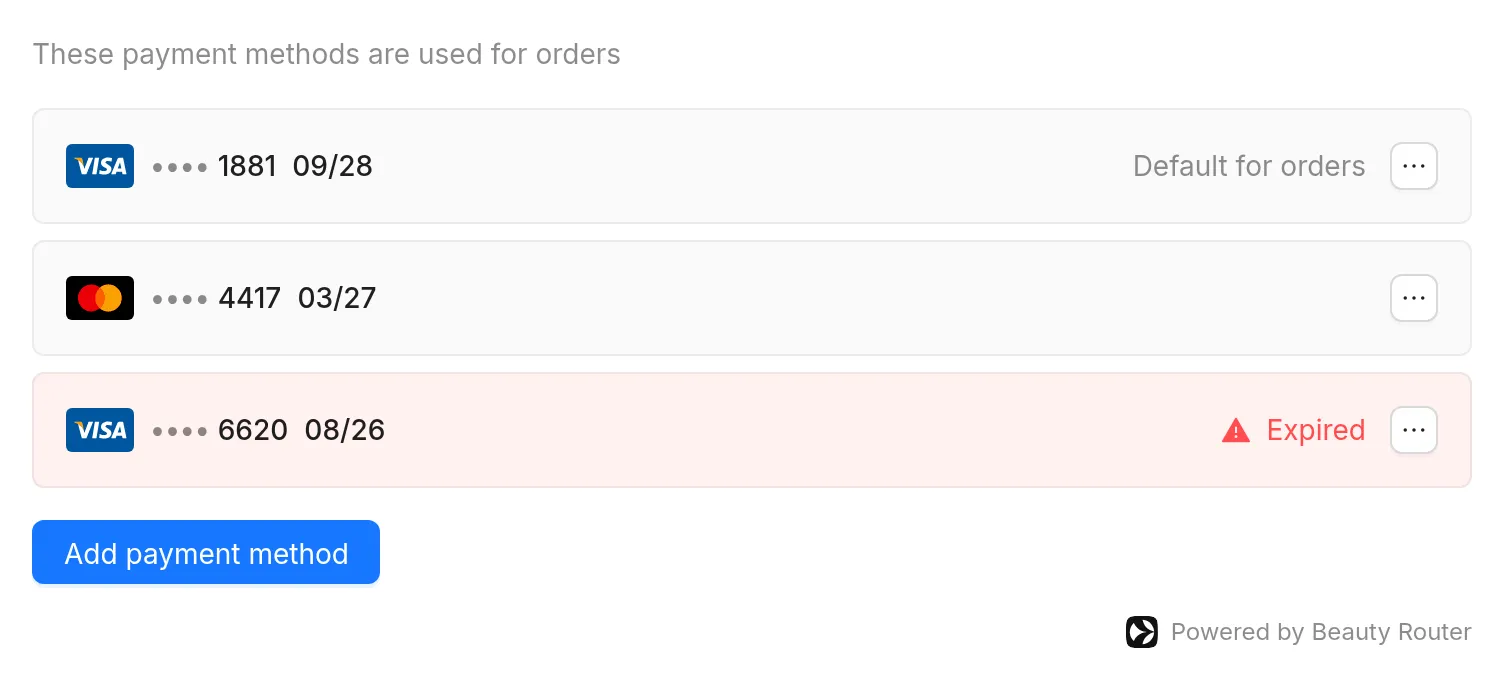
The page is a small list of the company’s payment cards. The user adds a card, selects the default card for orders, or disables or deletes a card. The default card cannot be disabled or deleted until another card is the default. An expired card shows as expired.
The card form runs inside the frame, including 3-D Secure. Only cards issued in the US are accepted. See Payment card.
Supplier
Section titled “Supplier”beautyRouter.showSupplier(element, "sup-8Wq2eRt5Yu");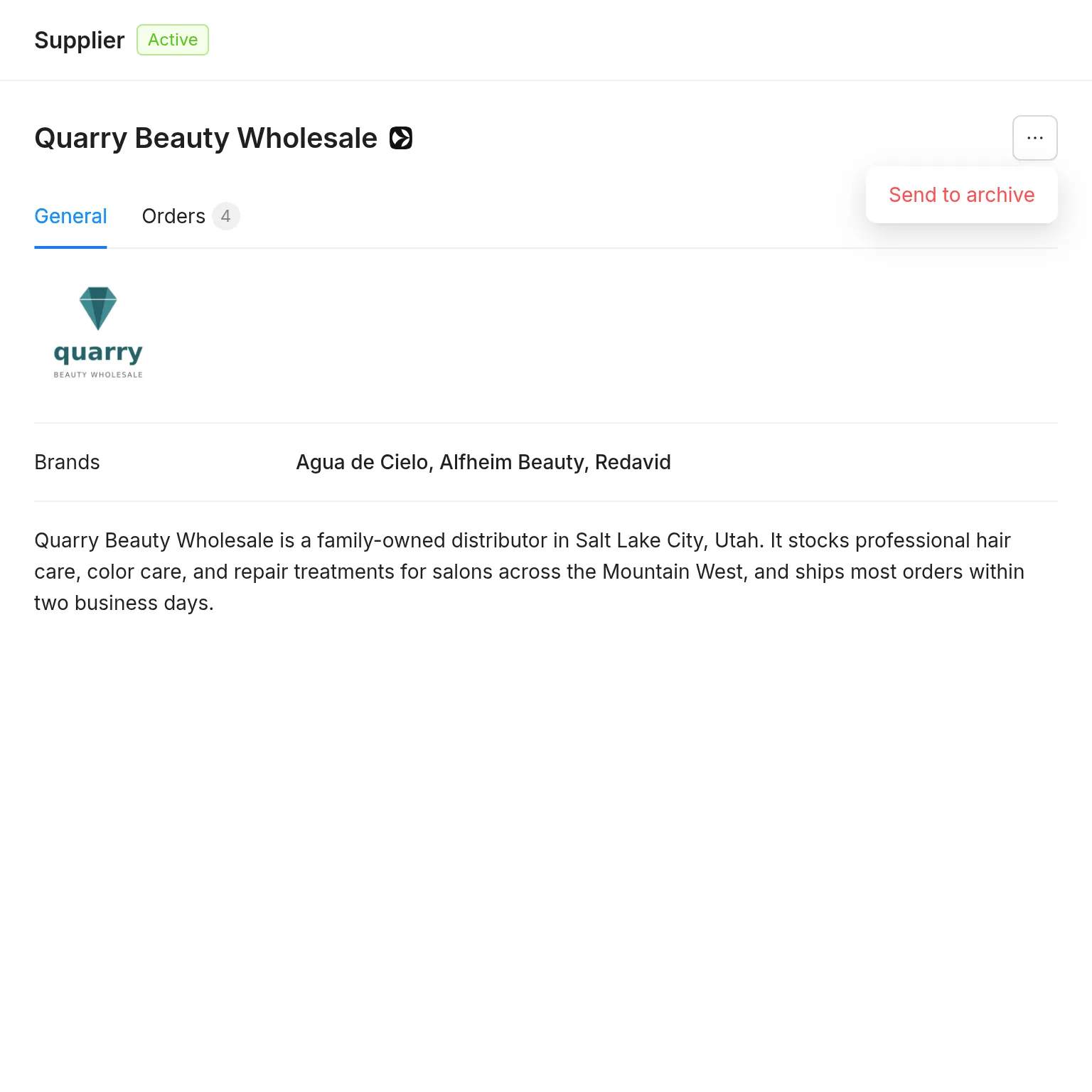
The page shows the supplier’s logo, brands, and description, and an Orders tab with the company’s orders from this supplier.
The menu has Send to archive, and Return from archive on an archived supplier. The salon can still order from a supplier it archived. See Archive and restore.
Service selector
Section titled “Service selector”beautyRouter.showServiceSelector(element, { level: "company" });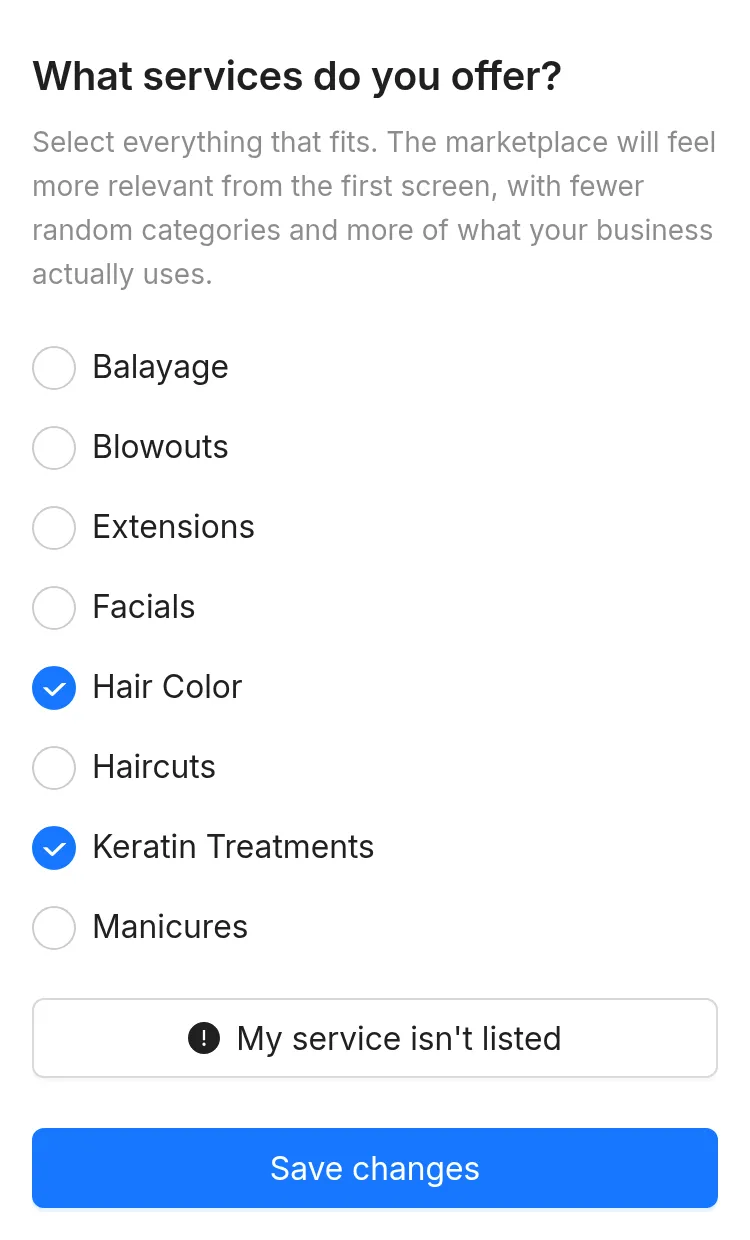
A form where the user selects services or proposes a new one. My service isn’t listed sends the new service to Beauty Router’s team. See Services.
level |
What the form saves |
|---|---|
"company" |
The company’s selection. This is the default. |
"user" |
The user’s own selection, which overrides the company’s. |
It is optional. Call it in your onboarding, or skip it. When you skip it, the marketplace shows all products, and users personalize it in the marketplace.
Product details
Section titled “Product details”beautyRouter.showProductDetails(element, "prod-4Fz9QbX2kL", { marketplaceFeatures: true });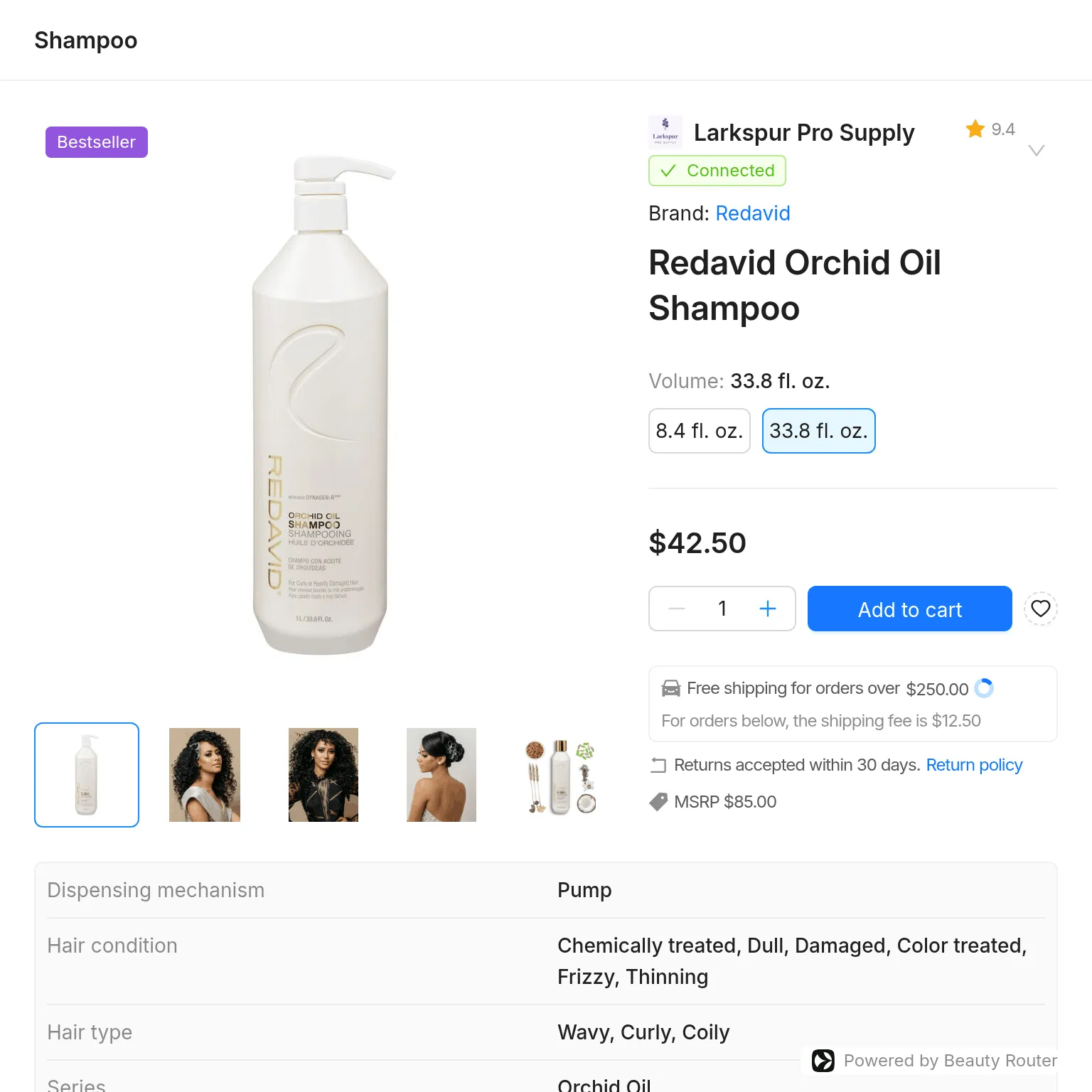
showProductDetails shows the full product, with several images, benefits, and ingredients, so you need no screen of
your own. To build one, use GET /v1/catalog/products/{productId}.
options is optional. Its marketplaceFeatures option turns the marketplace features on or off, and it defaults to true:
marketplaceFeatures: trueshows the product with the add-to-cart button, the other marketplace buttons, and recommended products.marketplaceFeatures: falseshows the product without them. Use it to show product information on your own screens, such as an inventory screen.
beautyRouter.showProductDetails(element, "prod-4Fz9QbX2kL", { marketplaceFeatures: false });The product ID comes from the catalog or from a product match.
Users who cannot order
Section titled “Users who cannot order”A user logged in with canOrder: false can view the marketplace and fill a
cart, but sees no order button. showOrder does not let them change or cancel an order, and showVerification and
showPaymentCards do not let them change the payment card.
Users who cannot change company settings
Section titled “Users who cannot change company settings”A user logged in with canManageCompany: false sees the
company details and documents in showVerification, but cannot change them or submit the company for review. The
payment card still follows canOrder.
Example page
Section titled “Example page”This page shows the marketplace. Your server has an endpoint, here /beauty-router/login, that logs in the current
user with POST /v1/login and returns the user token.
<!doctype html><html lang="en">  <head>    <meta charset="utf-8" />    <title>Marketplace</title>    <script src="https://js.beautyrouter.com/v1/beauty-router.js"></script>  </head>  <body>    <p id="order-message" hidden></p>    <div id="beauty-router"></div>
    <script type="module">      async function getUserToken() {        const response = await fetch("/beauty-router/login", { method: "POST" });        const { userToken } = await response.json();        return userToken;      }
      const beautyRouter = BeautyRouter.init({        getUserToken,        onOrderCreated(orders) {          const message = document.getElementById("order-message");          message.textContent = `Orders placed: ${orders.length}`;          message.hidden = false;        },      });
      beautyRouter.showMarketplace(document.getElementById("beauty-router"));    </script>  </body></html>
Other screens of your salon app use the same setup and call another function, such as
beautyRouter.showCart(element) on a cart page or beautyRouter.showOrders(element) on an order history page.
Beauty Router mark
Section titled “Beauty Router mark”The screens where a user buys, pays, or sends company documents show a small “Powered by Beauty Router” mark. Beauty Router charges the card and processes the order, so your users can see who handles their purchase.
The mark appears on showMarketplace, showCart, showCheckout, showOrder, showVerification, and showPaymentCards.
It also appears on showProductDetails with marketplaceFeatures: true.
When you build such a screen yourself with the API, such as your own New order page or verification page, show “Powered by Beauty Router” there too, with the Beauty Router logo in front of the text, about 16 pixels high. The mark has no link.

The interface asks each company to accept Beauty Router’s terms on first use. When you build your own screens with the API, link to the terms there.
Customize the interface
Section titled “Customize the interface”Beauty Router can create a design for your salon app, and you select it in the salon app admin area. It applies to every embedded interface session, so your code does not change. See Customize the interface.